Essence phone firmware (FW) update
Automatic firmware update
The Essence phones registered on www.jablotool.com can be easily update to latest available FW version directly from Jablotool portal.
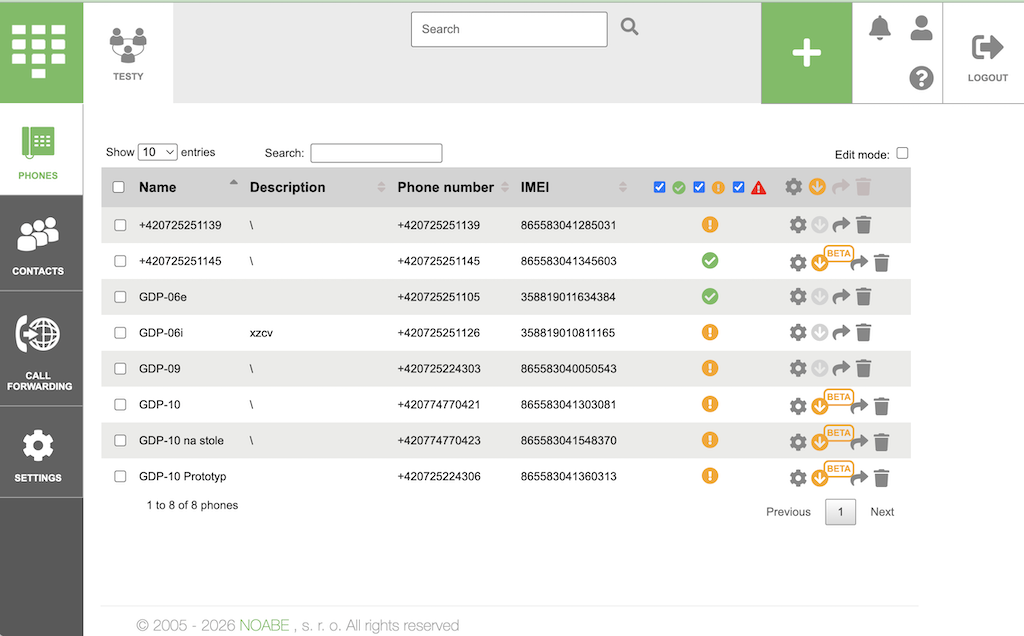
Once the newer version of firmware is available for your phone model you will be announced here.
The update may be initiated immediately or even scheduled out of active hours. Bunch of the phones may be updates at once.
The firmware is downloaded via secured mobile connection and it takes about 0,5 MB of mobile data.
Firmware update initiated from the phone
(only for model GDP-10 and GDP-10i)
If you do not use Jablotool.com for some reasons, you can initiate the update from the phone menu.
Connect the power supply, the phone battery must be charged above 80%.
Make sure that the SIM card is data enabled. The update needs approximately 0,5 MB of data.
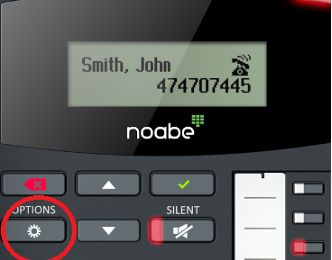
- Press the OPTIONS button:
- Select Settings / Phone / Firmware version
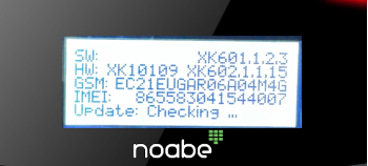
- The phone checks for update, this may take some time.
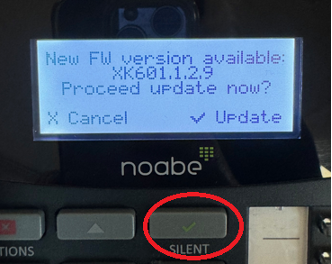
- If the update is available, confirm installation by pressing the green button:
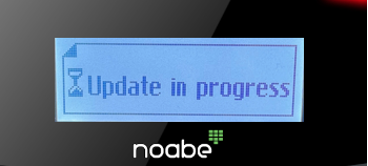
- The phone is updating:
- The phone automatically restarts after the update.
- If SIM PIN code is required, enter the PIN code.
- Your phone was successfully updated.
Emergency update of Essence (GDP-06i, GDP-06e, GDP-09) via USB
Procedure described below is intended for emergency situations only, when standard online update cannot be used.
- Download software UpdateTool and install*) it on your computer (Windows based).
- Launch UpdateTool software on your computer.
- Disconnect power adaptor from your phone and remove the battery.
- Disconnect the USB cable from the power adaptor and connect it to your computer (phone unconnected). Use the USB 2.0 port of your computer, not USB 3.0 (not the blue one).
- Press and hold the # button on the phone, insert battery and connect USB cable to the phone.
- Now release the # button. Essence will display “updating”.
- In the UpdateTool software click “Next” and follow further instructions.
- The phone will restart after the update (in the end UpdateTool may show warning – please, do not take it into account).
- Press “Options” button to enter the menu, select Settings > Phone > Firmware version and check, whether latest firmware is installed (compare first line on the screen with the release notes).
Your phone was successfully updated.
*) On some computers Windows Defender’s warning can appear during the installation (see bellow). Please, click “More info” on the first screen and “Run anyway” on the second screen.
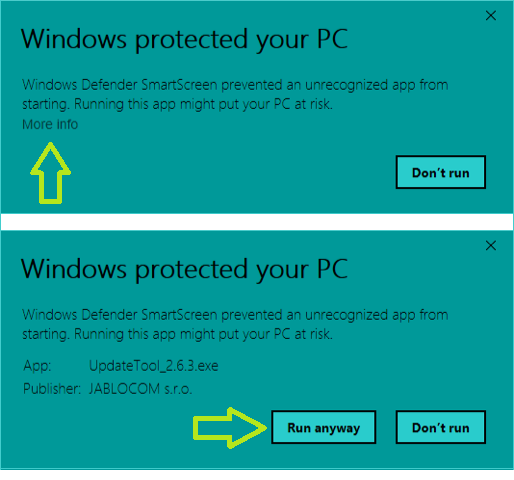
During installation similar Windows Defender warning can appear. Proceed as shown on picture – click on “More info” and then choose “Run anyway”.