Camera connection troubleshooting
This guide helps to find and fix the problem of the camera connection to Jablotool.
Please check:
- Make sure your camera is turned ON.
- Power the camera from power adaptor
- Green LED should be steady ON when camera is in Sleep mode
- Call camera
Call your camera number to check it is powered on and connected to mobile network.
If you call form number which is registered in cameras configuration already then camera should answer the call and you will hear the voice menu. If you number is not registered in camera yet then camera will end the call after two rings. - Make sure that you enter correct phone number including international prefix +XXX when enter your camera number in Jablotool.
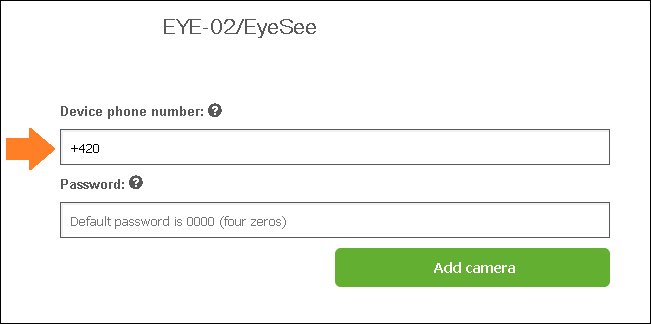
- Check the remote access password which you have entered while you register your camera. The default password is 0000 (four zeros), may you have changed it please use your own password.
- Is DATA tariff active on your camera’s SIM card? Have you not reached the data (FUP) limit? Call your mobile provider and ask you data are active on camera SIM card.
- Check network signal level by sending SMS in the format “0000 STATUS” to your camera. 0000 (four zeros) is default password. If you changed this password use your own password.
- Install Jablotool SW on your PC. You can download it from www.noabe.com/download.
- Start the program and connect the camera via USB cable to your computer.
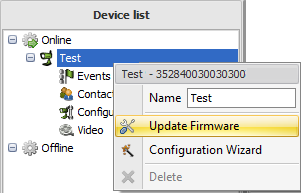
- Update software of camera. Right-click on the icon of your camera and choose Update firmware.
- Click on the icon of your camera. You will see information about GSM signal.
- Select Configuration and then GSM network. Select the option Automatic configuration.
- Install jCheck SW on your PC. You can download it from www.noabe.com/download
- Start the program and connect the camera via USB cable to your computer
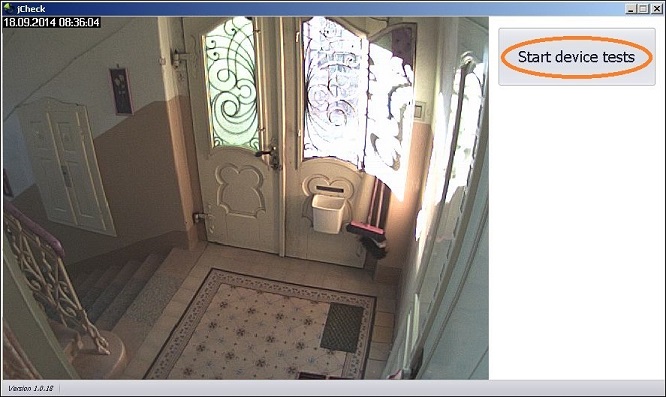
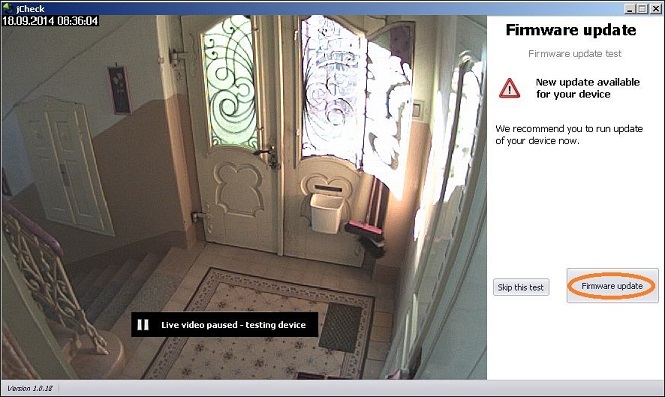
- Click “Start device tests”, if your camera has outdated FW, jCheck will offer you an update
- Click “Firmware update” and keep clicking “Next” until your camera is updated
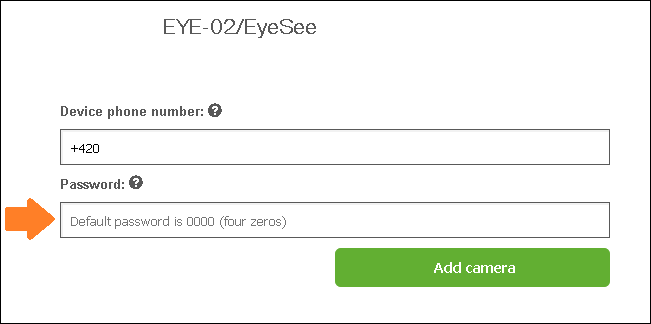
⇒ You can also check the password by sending SMS in the format “XXXX STATUS” to your camera. “XXXX” stands for remote access password. If the password is correct camera will reply by SMS about its status. If the password is incorrect you will not get any reply.
⇒ Camera will reply by SMS with information about the signal. You can check the signal also in JabloTool SW (see point 7). The optimum signal is at least 60%. For more information about improving camera signal click here.
Firmware update
EYE-02 camera
EYESEE camera
Try to connect your camera again.