Reporting from camera is delayed
Reporting of my EYE-02 camera is delayed, what should I do?
1. Avoid intentional delays
- Check Exit and entrance delay. Longer delay gives you longer time to switch your camera to Sleep mode whenever you enters your home. But on the other side – it brings delays in reporting. You should find some compromise. Look at Settings – (Advanced) – Advanced settings – Exit and entrance delay
- Check Video recording period, which says how long your camera records video in case of alarm. Longer period may – under some circumstances – delay your reports. Look at Settings – (Advanced) – Advanced video settings – Video recording period. We recommend using approximately 30 seconds.
- Check Attachment size limit of your report. Of course it takes longer times to transmit bigger attachments (especially when connection is poor). Moreover – especially in connection with long Video recording period – this can cause very long delays in preparing the report (i.e. there is not enough relevant pictures to cover the full size limit, so camera waits until “something moves” to add another relevant pictures). Look at Reporting – (Advanced) – Limits – Attachment size limit. Default size is 300 kB.
2. Reduce the number of events
- Check the list of events of your camera. If there are too many alarms, check which detector causes alarms. Login to JabloTool.com and click on your camera. You will see the list of alarms (and which detector triggered them) on the right side of the page.
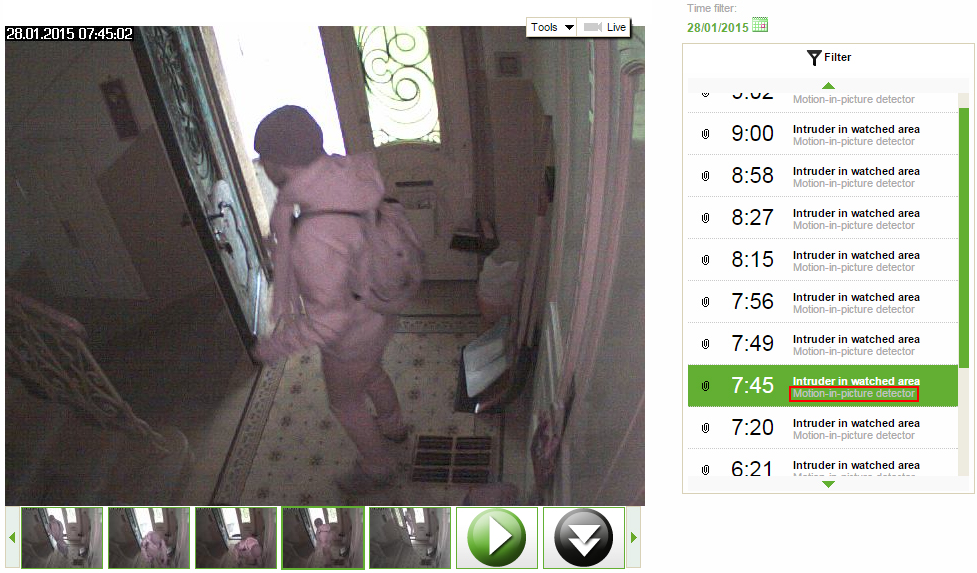
- Change configuration of that detector in Settings (Advanced) → Detectors. For tips on how to configure camera detectors click here.
3. Avoid “slow channels”
- Use SMS instead of MMS or calls. (Select Reporting for your camera at Jablotool.com)
- Utilize Messenger service for sending emails (instead of camera). Sending of emails is for free. Look at Reporting – Messenger service and check “Email”. For more information about Messenger activation click here.
4. Reduce the number of contacts for reporting
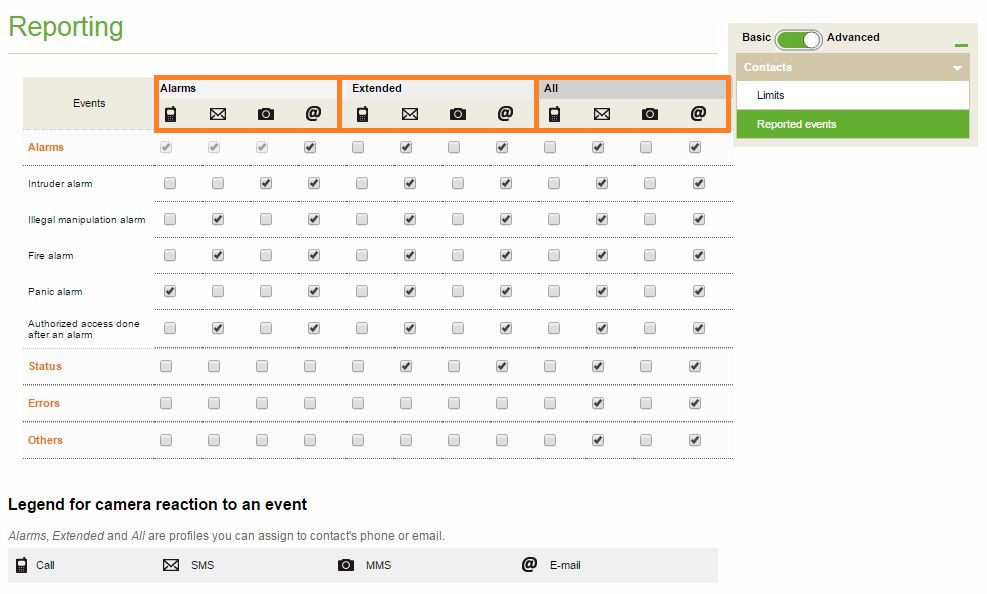
- Select Reporting and set level of reporting (Alarms, Extended, All) for each phone number and email.
5. Choose only events you want to get reported
- Select Reporting and remember the reporting profile of your contact (e.g. Alarms).
- Select Reporting (Advanced) -> Reported events. Tick how you want to be informed about different events. Adjust configuration in the column that belongs to the reporting profile of your contact (e.g. Alarms).
6. Improve the signal. If the camera has low signal the data connection is slow and unstable, thus the reporting is slow. For tips on how to find out and improve your signal please see post on improving camera signal.